How to Speed Up a Slow Computer Without Reinstalling Windows
When you start your computer or laptop it takes time to reach out to login screen. Also, when you click on any program, instead of launching a small circle starts spinning. Now your speedy computer is taking three to five minutes to open an email. Here you will start to find a fix, your first thought might be fresh windows installation. But before you go through that time-consuming hassle, know this—you can almost always speed up a slow computer with some simple, non-destructive tweaks.
Think of your PC like a cluttered kitchen. You don’t need to clean up the whole home (Similar reinstall windows); you just need to clean out the old containers, organize the drawers and fix the drawer that was causing dirt. In this guide I will walk through practical solutions to improve PC performance that any can do, explain why your computer gets slow over time and also help you to improve performance and identify specific bottlenecks.
Why Do Computers Get Slower Over Time?
When you purchase a new PC, with passage of time it becomes slower due to following factors: –
- Life of Hardware
- Full of Storage
- Accumulation of dust and rust (In areas where humidity is higher)
- Rough Usage
Your computer has RAM, Processing Unit and Storage space. Over time, we install programs that run quietly in background, we save thousand of files and temporary data piles up. This temporary data is also a source of slowing down the PC.
Real Life Examples of Slow PC
- Remember when your computer was fast and new? You’ve since installed photo editing software, a game launcher, cloud storage sync apps, and that toolbar you forgot about. Many of these run automatically.
- Your Downloads folder has 1,500 files in it. Your desktop is covered in icons. Your web browser has 50 tabs saved from six months ago. This clutter eats up space and mental energy for your PC.
- Windows and your apps get updates, which is good for security, but sometimes newer software is designed with more powerful computers in mind, making older hardware feel strained.
Signs & Symptoms: Is Your Computer Just Old, or Just Clogged?
How do you know if these fixes will work? Look for these signs:
- Slow Startup: It takes several minutes to go from pressing the power button to being able to use an app.
- General Lag: Programs take forever to open, typing feels delayed, or windows stutter when you move them.
- Constant Hard Drive Noise: You hear a lot of grinding or clicking (this is a sign of a traditional hard drive working overtime).
- Fans Always Running: Your computer sounds like a jet engine even when you’re just browsing the web.
- Frequent Freezes: Programs become “Not Responding” for short periods.
How to Fix a Slow Computer or Laptop
Here is step-by-step guide to fix a slow pc:
Step 1: Instant Actions
Restarting: When you restart your pc, it clears out the temporary memory (RAM). This step is crucial if you are using your pc from weeks. Include in your checklist to restart a computer once a week.
Close all Unnecessary Programs: Check your Taskbar and System Tray, close every browser tab, program, and app you don’t actively need right now. Each one eats resources.

Step 2: Control Startup Programs
Too many programs that slow down computer startup are the biggest culprit behind a slow boot.
- Press Ctrl + Shift + Esc to open the Task Manager.
- Click on the “Startup” tab.
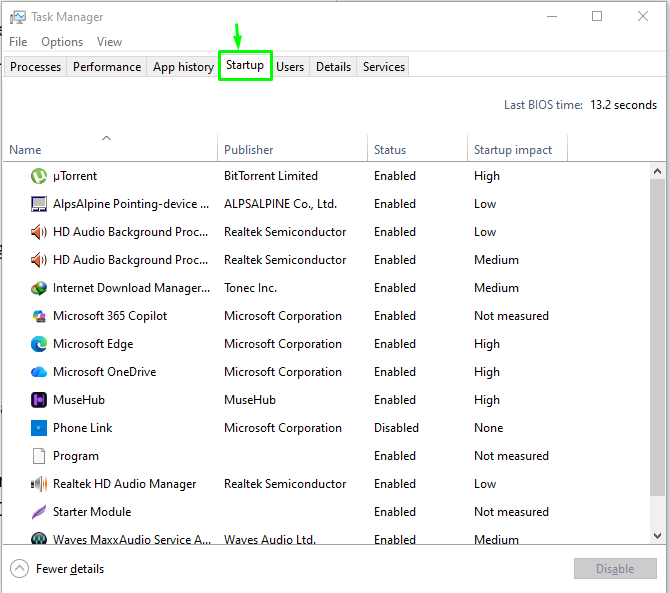
- You’ll see a list of programs that launch with Windows. Look at the “High” impact ones.
- Right-click on any program you don’t need immediately upon boot (like Spotify, Skype, OneDrive, or game launchers) and select “Disable.” Don’t worry, you can still open them normally later.
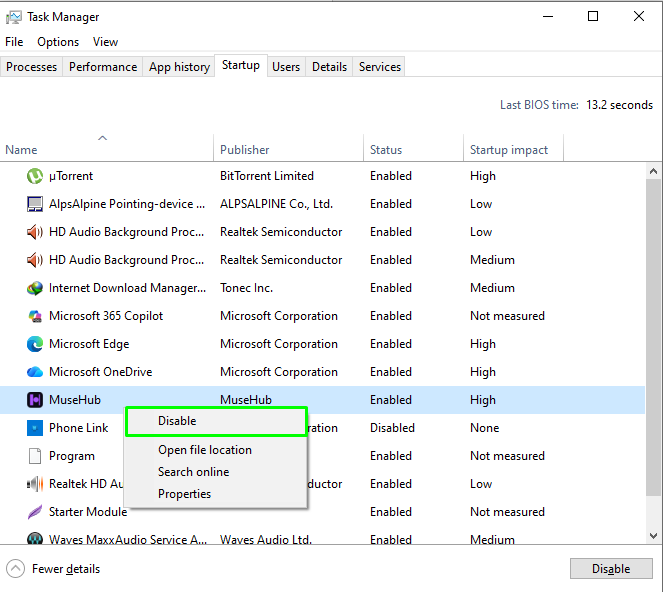
Above step can boost your boot time.
Step 3: Free Up Your Hard Drive Space
When your main drive (usually C:) is nearly full, Windows has no room to work efficiently.
- Press the Windows key + I to open Settings.
- Go to System > Storage.
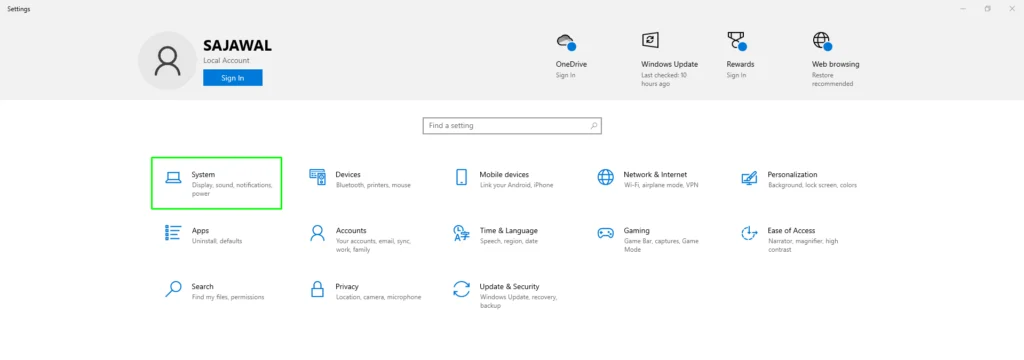
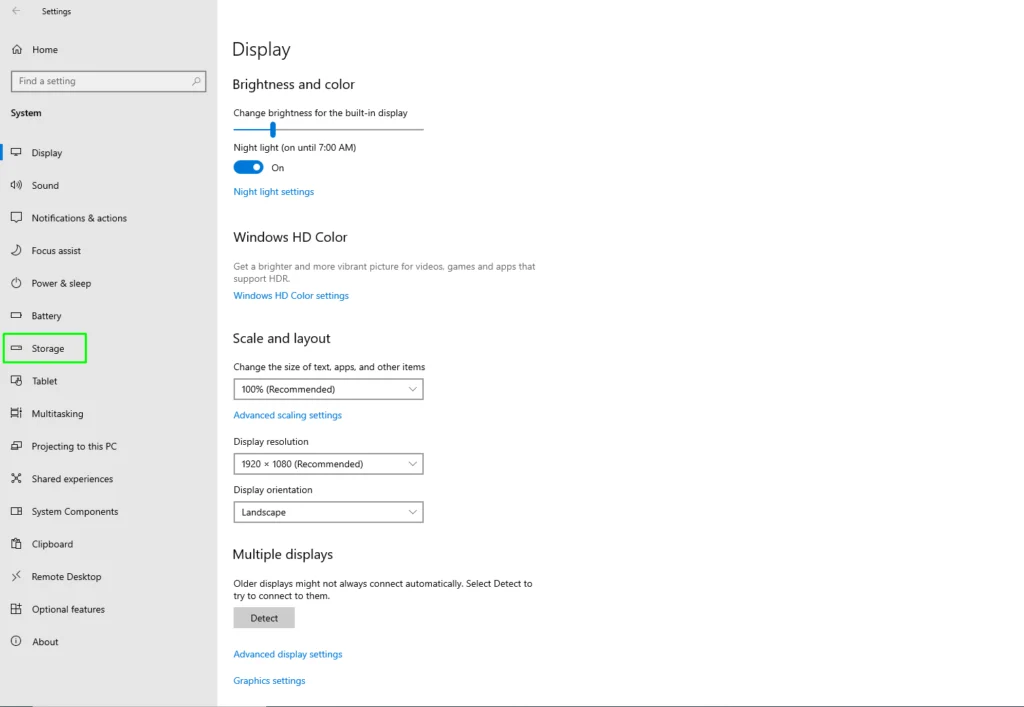
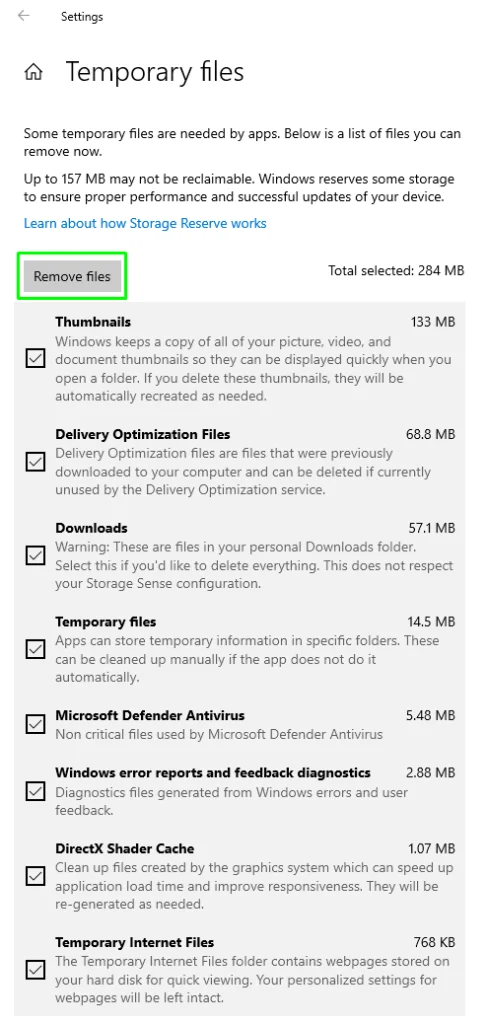
- Click on “Temporary files.” Check the boxes for “Temporary files” and “Delivery Optimization Files.”
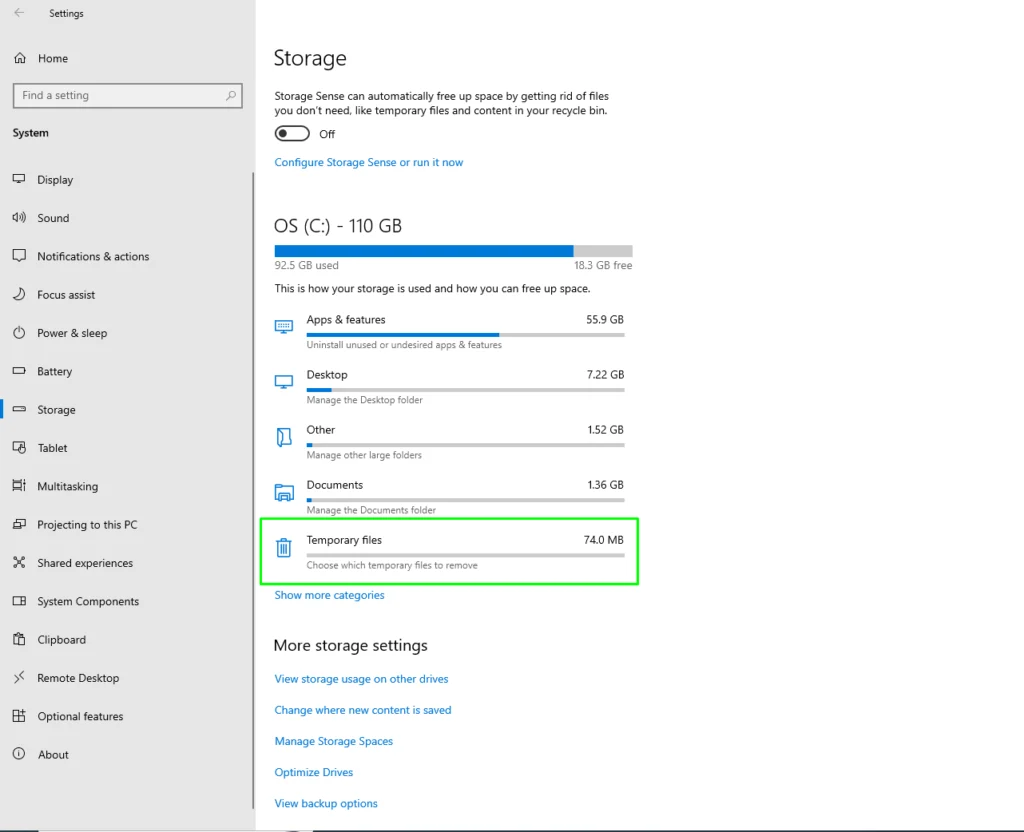
- Click “Remove files.”
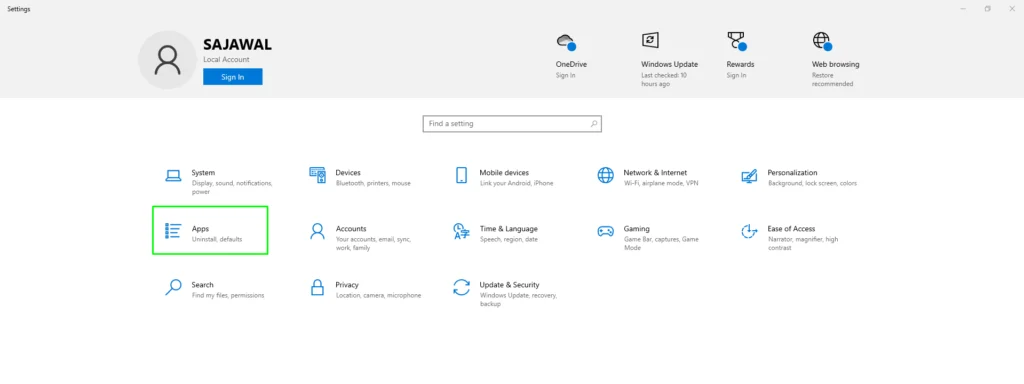
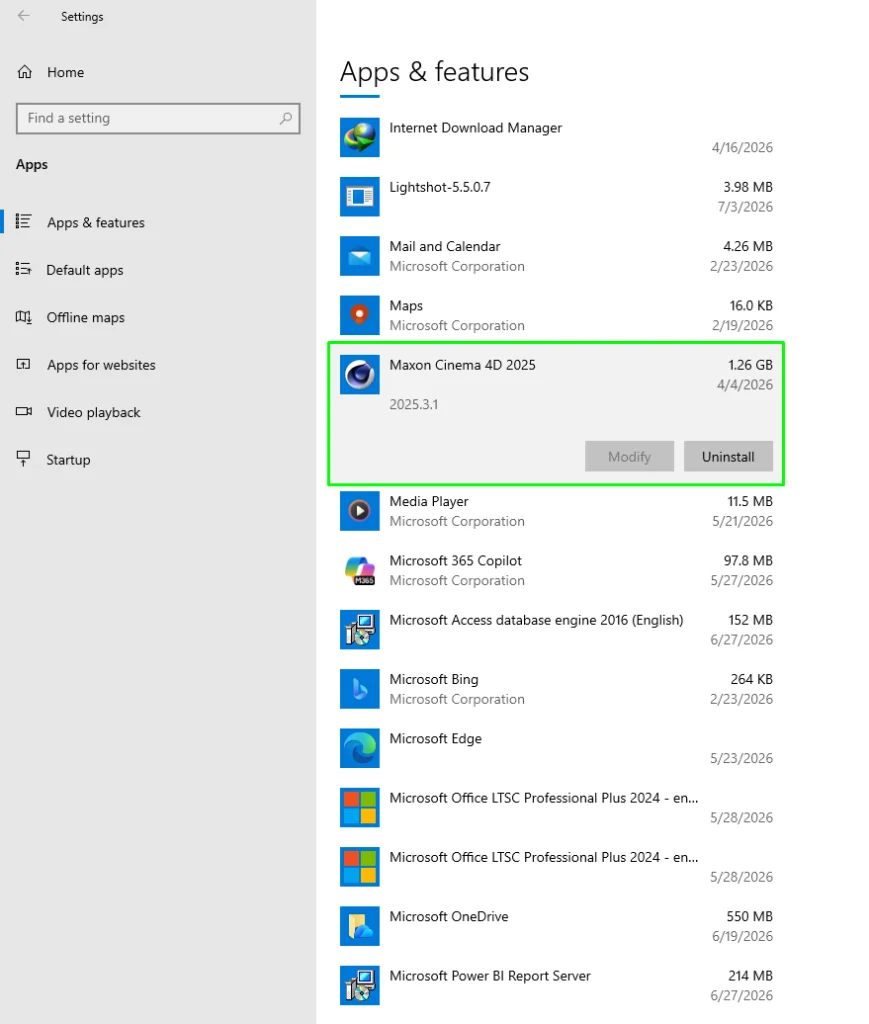
- Next, go to Settings > Apps > Installed apps. Scroll through and uninstall any program you genuinely never use. Old games, forgotten trial software, and duplicate tools are perfect targets.
Step 4: Manage Background Activities
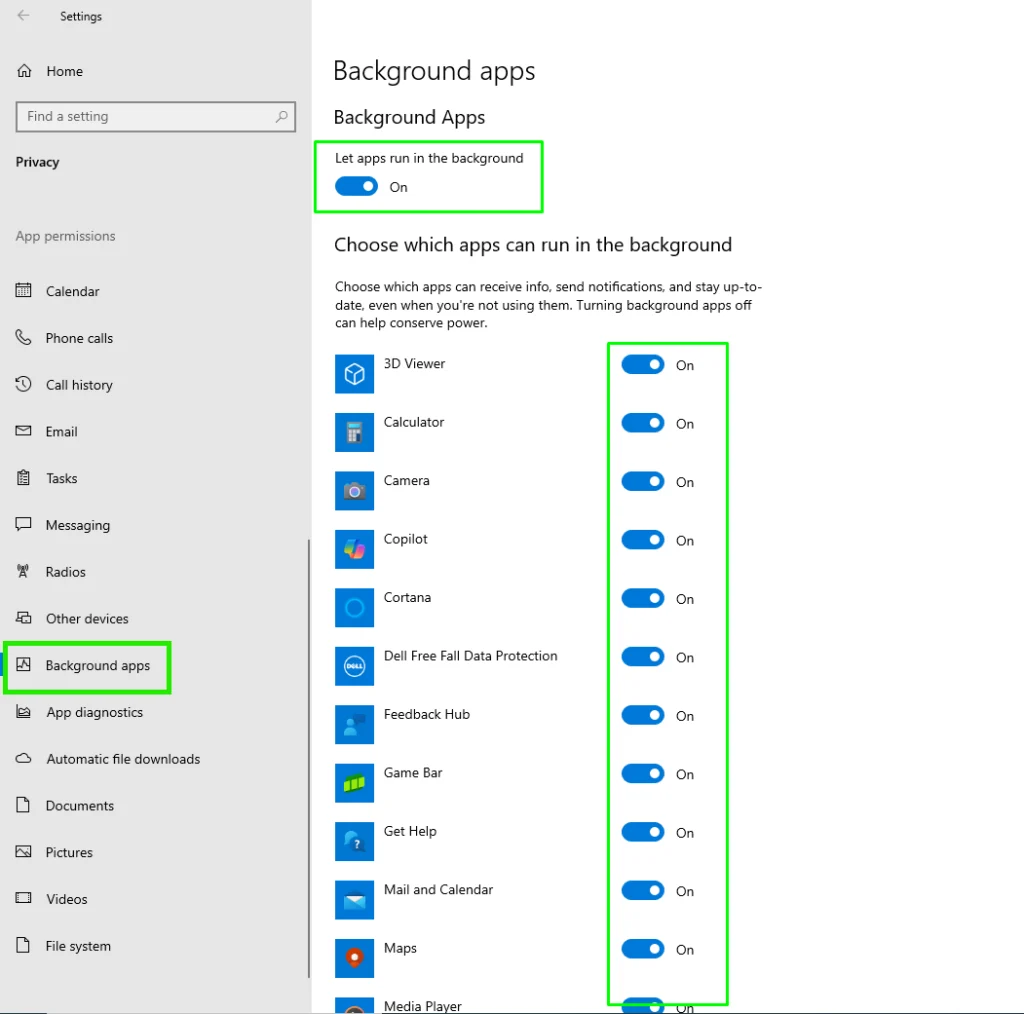
How to disable background apps in Windows 11 and 10
- Go to Settings > Privacy > Background apps.
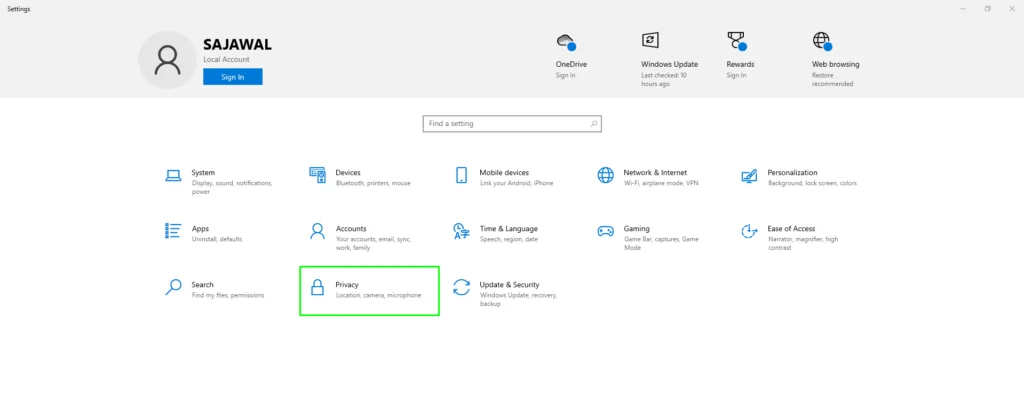
- You can toggle “Let apps run in the background” off entirely, or scroll down and turn off permissions for individual apps like Mail or Weather that don’t need to update constantly.
Step 5: Boost Windows Performance
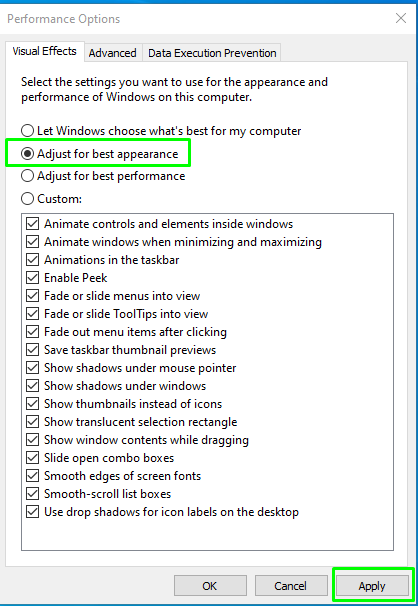
These best Windows settings to improve PC speed tweak visual effects for function over form.
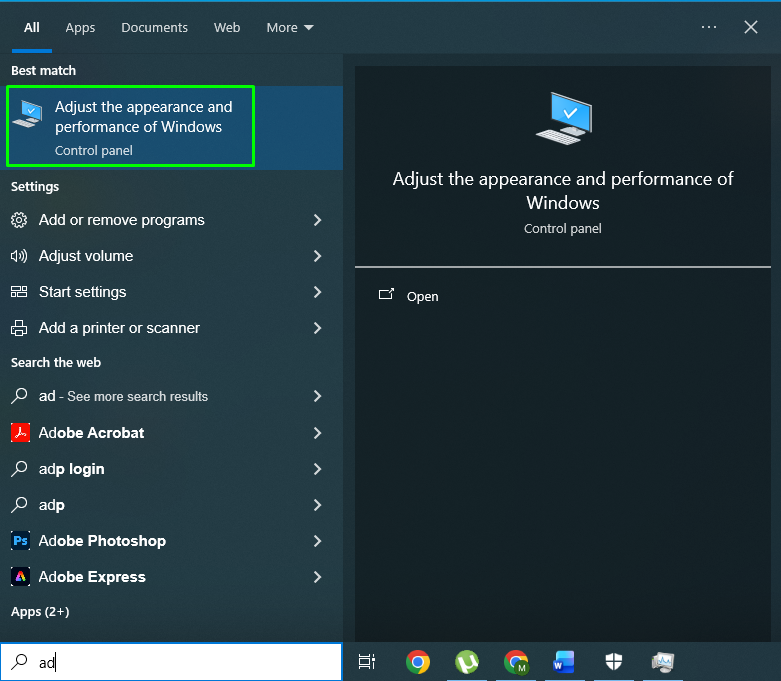
- In the Start menu, search for “Adjust the appearance and performance of Windows” and open it.
- In the Visual Effects tab, select “Adjust for best performance.” This turns off animations and transparency effects, freeing up resources.
Step 6: Scan Your Computer
- Go to Settings > Update & security > Windows Security > Virus & threat protection.
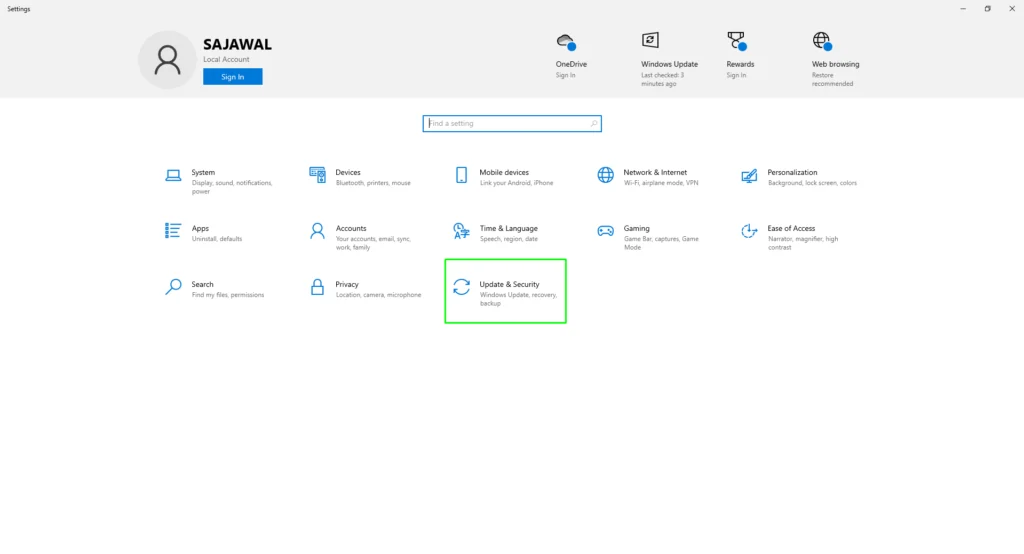
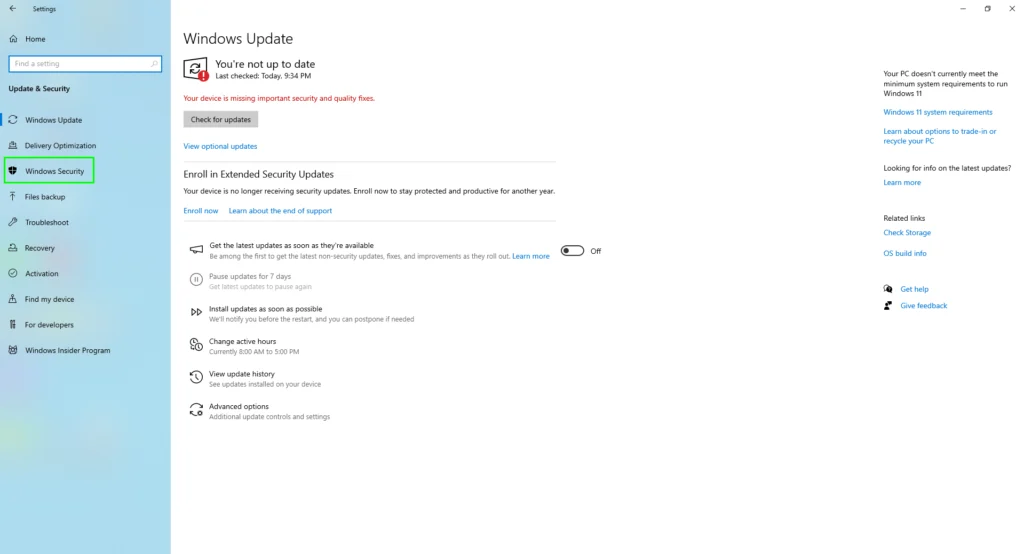
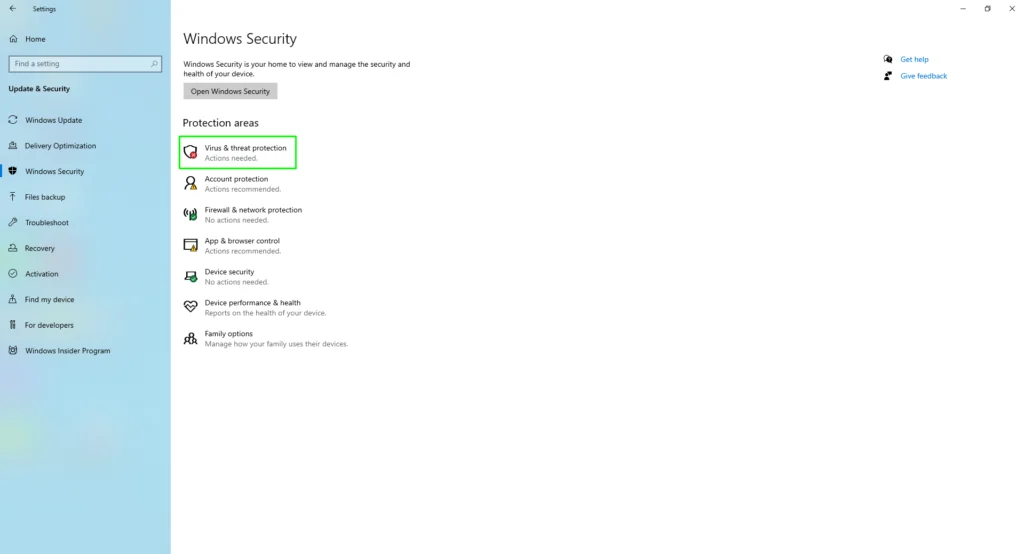
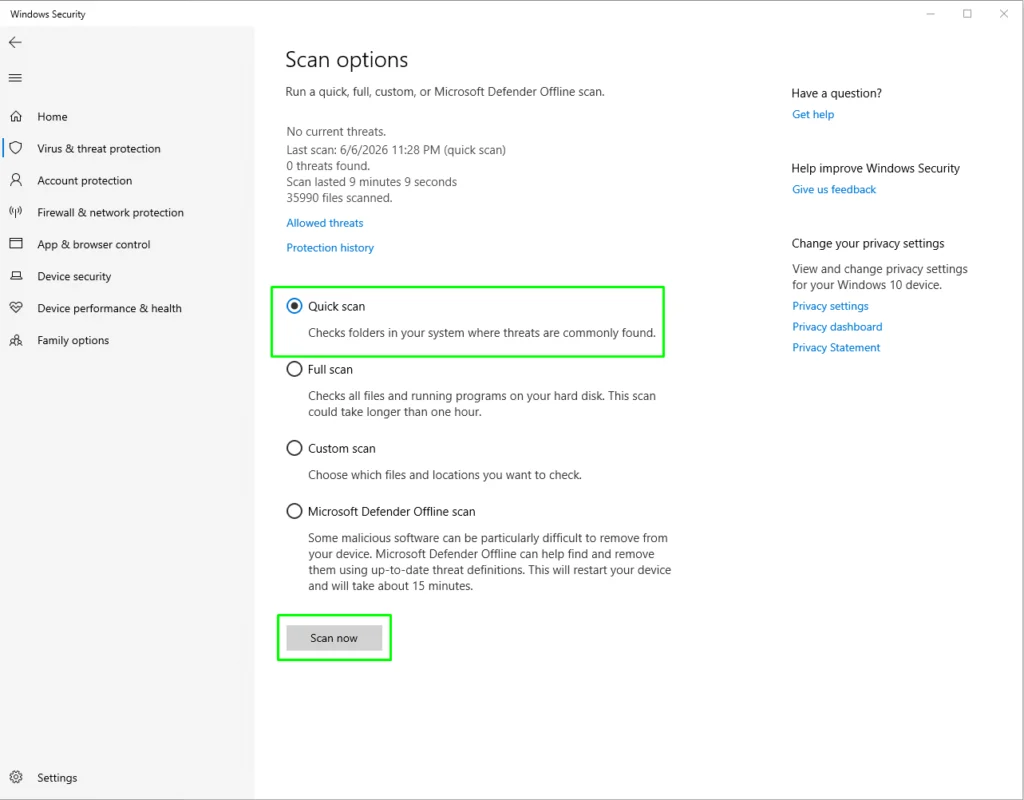
- Click “Quick scan> Scan Now.” Malware can consume huge amounts of CPU and memory, crippling your speed.
Step 7: The Advanced Check
How to check computer performance bottlenecks
- Open Task Manager (Ctrl + Shift + Esc).
- Click on the “Performance” tab.
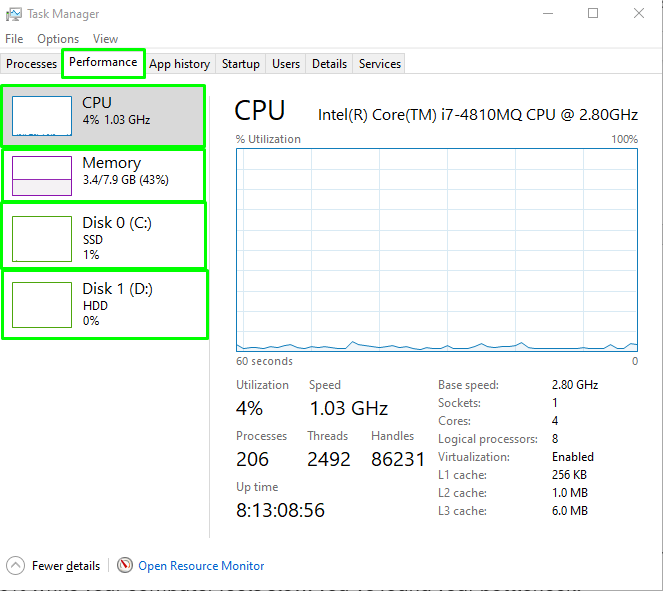
- Look at the graphs for CPU, Memory, and Disk. If any of these are consistently at 90-100% while your computer feels slow, you’ve found your bottleneck.
- CPU at 100%: A single program is hogging it, or your processor is overwhelmed.
- Memory at 100%: You need more RAM or have a serious memory leak.
- Disk at 100%: This is common with traditional Hard Disk Drives (HDDs). The single best performance upgrade without a hardware upgrade is replacing an HDD with a Solid State Drive (SSD).
Preventive Measure to for Smooth Functioning of PC
- The Monthly Clean-Up: Once a month, repeat Steps 2 (review startup apps), 3 (clear temp files), and 6 (run a virus scan).
- Mindful Installing: Always choose “Custom Install” when installing new software to avoid accidentally adding toolbars or bundled apps.
- Update Wisely: Keep Windows Updated, but you can often pause major version updates if you want stability on older hardware.
Common Mistakes to Avoid
- Using “Registry Cleaners”: These often cause more problems than they solve. Windows manages its registry fine on its own.
- Disabling Critical Windows Services: If you don’t know what a service does, don’t disable it. You might break essential functions.
- Filling Up the SSD: Always keep at least 15-20% of an SSD free for its longevity and performance.
Expert Tip
If you’ve done all the software tweaks and still need more speed, listen carefully. For computers more than 3-4 years old, replacing a traditional Hard Disk Drive (HDD) with a Solid State Drive (SSD) is the most dramatic speed upgrade you can possibly make. It affects everything—boot time, program launches, file saves. It’s like replacing a dirt road with a highway. It’s a bit more involved but often a better value than buying a whole new computer.
When to Seek Professional Help
If you experience:
- Blue Screen of Death (BSOD) errors frequently.
- Loud clicking or grinding from a hard drive (immediately back up your data!).
- Physical damage or overheating that causes sudden shutdowns.
- Complete unwillingness to open Task Manager or Settings (this could be severe malware).
FAQs
Your Practical Action Plan to Start from Today
Don’t get overwhelmed. Here’s your roadmap:
- Right Now: Restart your computer.
- Today: Open Task Manager and disable 3 unnecessary startup programs.
- This Week: Run the Windows Storage cleaner to remove temporary files.
- This Month: Do a full audit of your installed apps and uninstall 5 you never use.
By following this guide, you’re not just fixing a slow computer—you’re learning how to maintain it. This knowledge saves you time, money, and frustration. Give your digital workhorse the tune-up it deserves and enjoy a faster, more responsive PC without the drastic step of reinstalling Windows.